

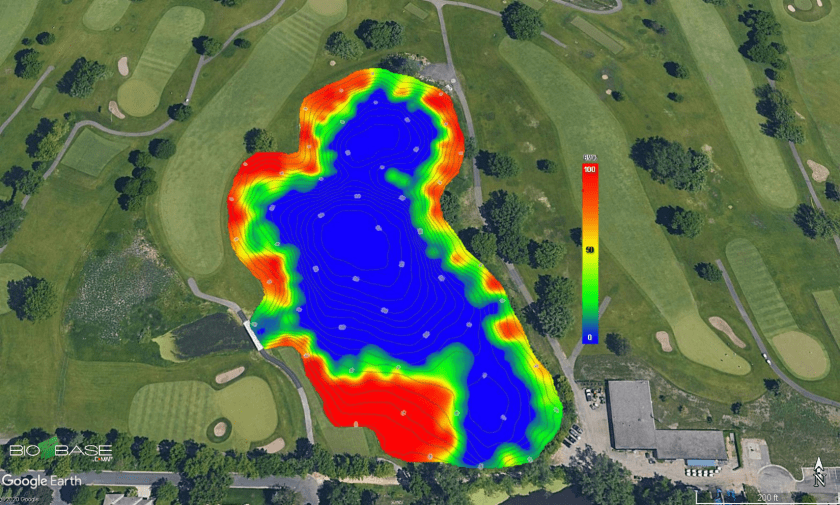
At C-MAP, we are excited to announce the release of a new feature that allows users to export exact replicates of their BioBase EcoSound maps as Google Earth images (.kmz and .kml; Figure 1). This YouTube video will walk you through how it’s done.


BioBase processed raw sonar logs and creates habitat maps with sophisticated algorithms. The outputs you see in BioBase are tiled georectified images (.png) of the outputs. The Google Earth feature converts the .png images to Google Earth’s .kml and .kmz file format. .kml downloads are smaller and reference the images on BioBase servers. .kmz downloads are larger and are exact copies of the images stored on our servers. The .kmz option is best for users who wish to archive local copies of their BioBase maps.
These images allow BioBase users to share spatial files with their stakeholders in a free Google format with which many are familiar and use regularly. Recipients can interact with the output zooming in and out to their desire and also adding custom logos and waypoints as they wish (Figure 2).

Further, there are a range of open source tools that will convert .kml and .kmz to GIS files for use in ESRI and QGIS products. Given the popularity and widespread use of .kml and .kmz files, there are a range of other applications that we are eager to hear about. Please feel free to share in the comments below.
Converting EcoSound .kml/.kmz files to ESRI Layers (.lyr)
Special thank you to Kevin Johnson and Jennifer Moran at FL Fish and Wildlife Conservation Commission for sharing a tutorial about how to convert .kml/.kmz files to ESRI Layer (.lyr) files for analysis and overlays in ESRI GIS products:
- Open ArcMap
- Open ArcToolbox > Conversion Tools > From KML > KML to Layer


-
-
- Input KML File
- Toggle to saved .KML file Lake_Kerr_Biobase.kml (example) > Open
- Output Location
- Default output location is Documents\ArcGIS > Click the folder icon on right and toggle to appropriate folder
- Output Data Name (Optional)
- Will typically show the name of the kml, change if preferred
- Select Checkbox for Include Ground Overlay (optional)
- Only necessary for Raster data. Not necessary for lines/points/polygons
- Input KML File
-


*This will take some time to process/load and will show up in ArcCatalog as “FileName.lyr”. Processing will depend on the file and image size. After it displays in the catalog, drag and drop or select Add Data to display the layer on the map.
**Arc GIS may shut down/disappear. You may not receive a green checkmark for execution completion. Reopen the program and go into your Catalog. Should not need to reconvert from .kml.


